AR Clip Mapper
Capture a VPS map of a place with the AR Clip app on your iPhone, then check how well it localizes.
AR Clip is a WebAR viewer that also captures maps for AR Clip VPS.
Install the app
- Install AR Clip from the App Store. You do not need LiDAR.
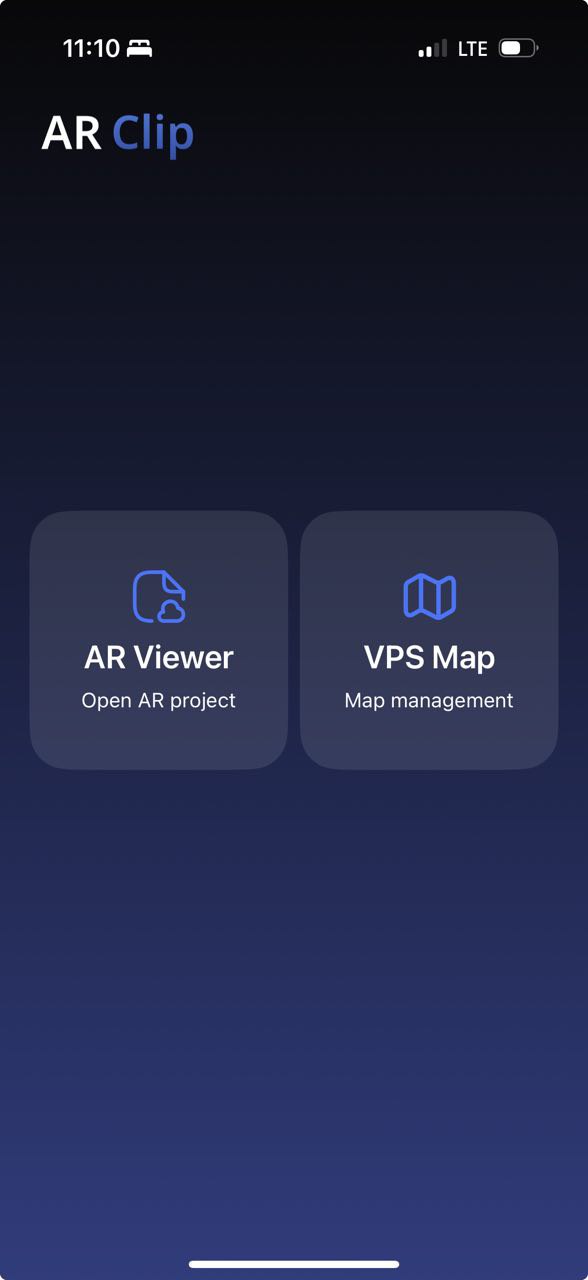
- Open the app and tap VPS Map.
Android
Map capture works only in the iOS app. The Android app does not capture maps.
Sign in
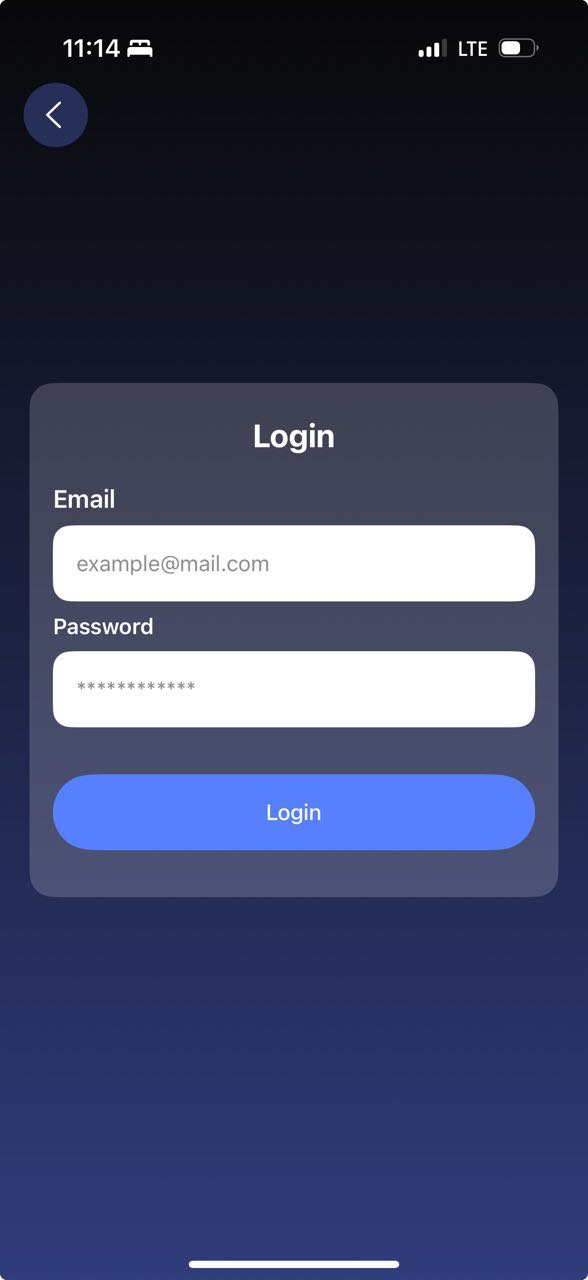
- Sign in with your arclip.design account.
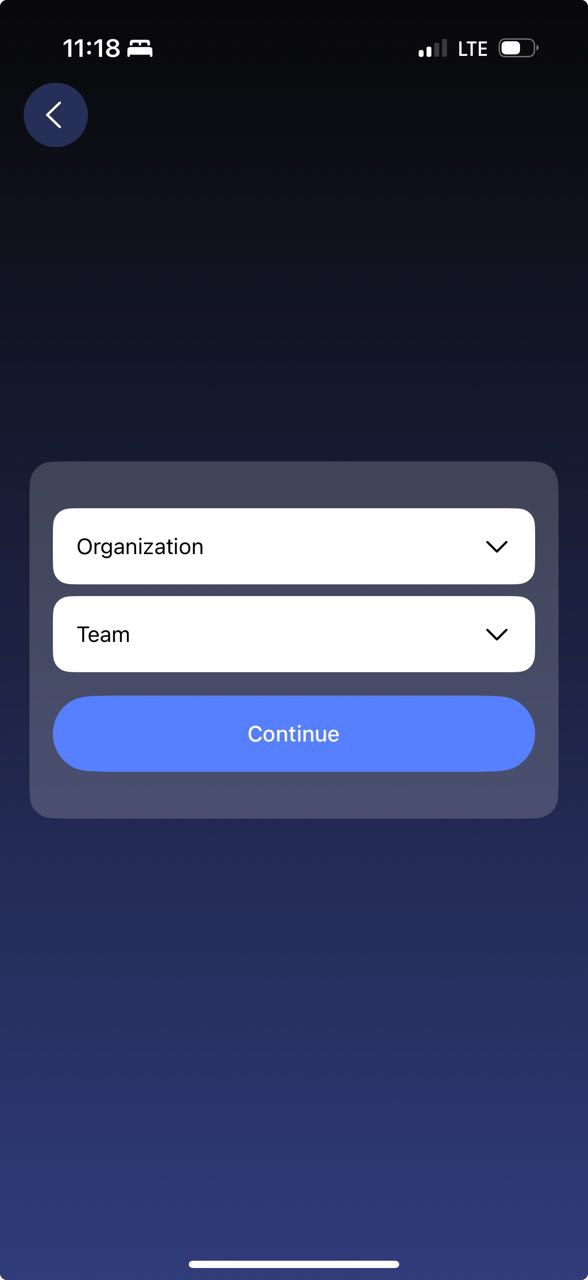
- Choose your organization and team.
Create a map
The home screen lists your maps with their status, name, ID and creation time.
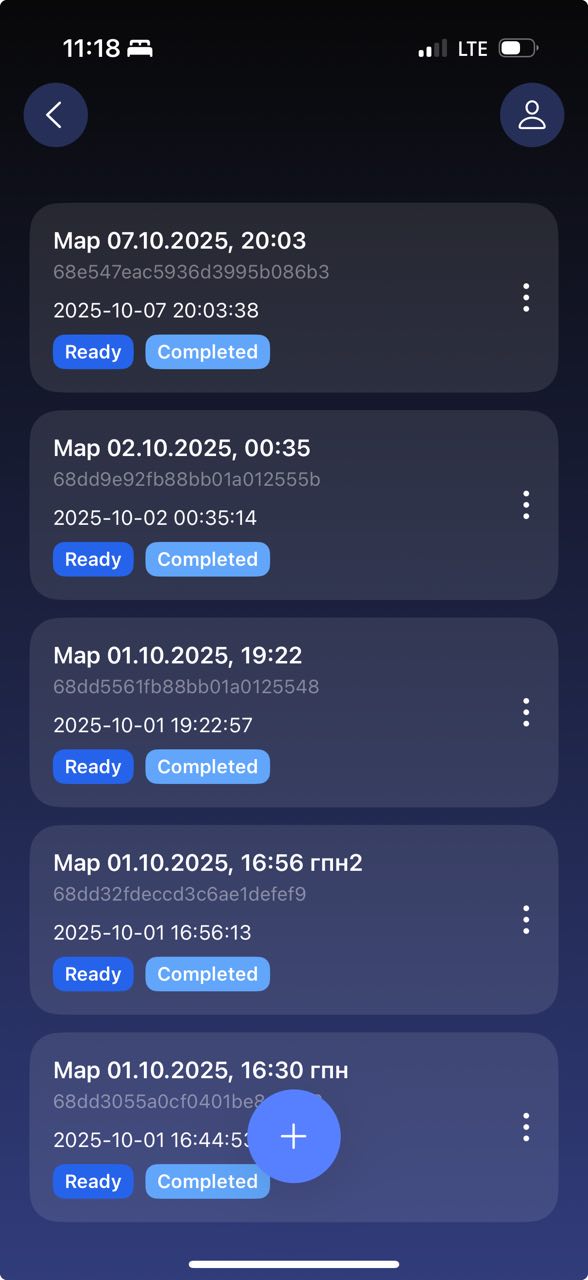
- Tap the plus button at the bottom of the screen.
- Allow camera access. A dialog shows how accurate your GPS is.
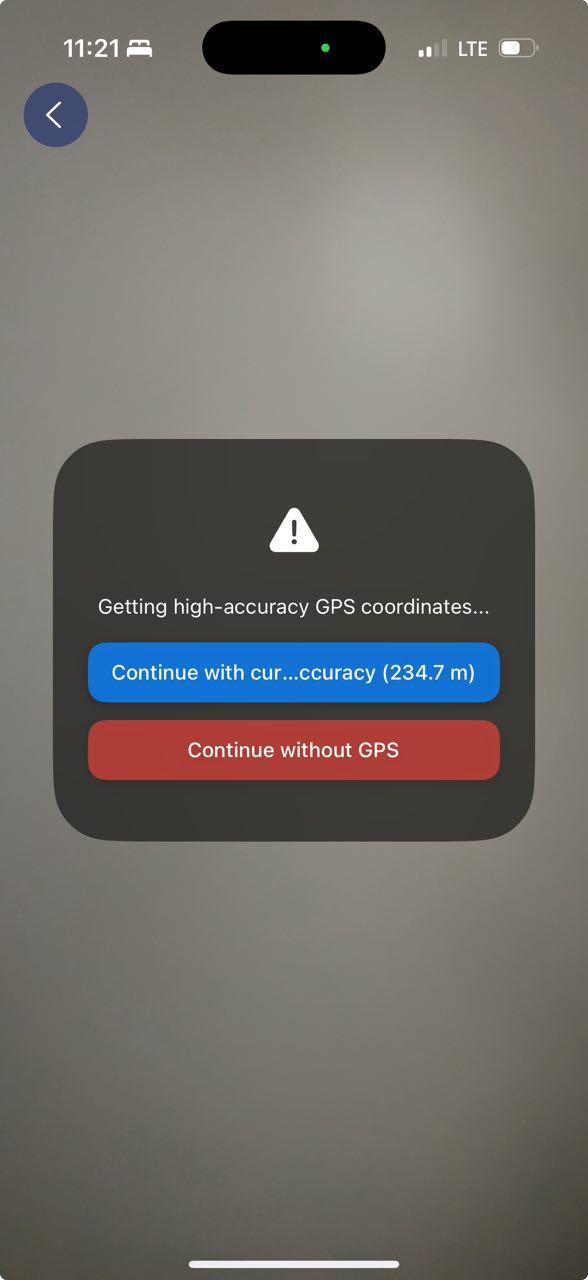
GPS is optional
If accuracy is worse than 50 m, tap Continue without GPS. Waiting a little or walking around can improve it.
- Choose a capture mode:
- Real-time mode — the app captures a frame every second.
- Manual mode — you capture each frame yourself.
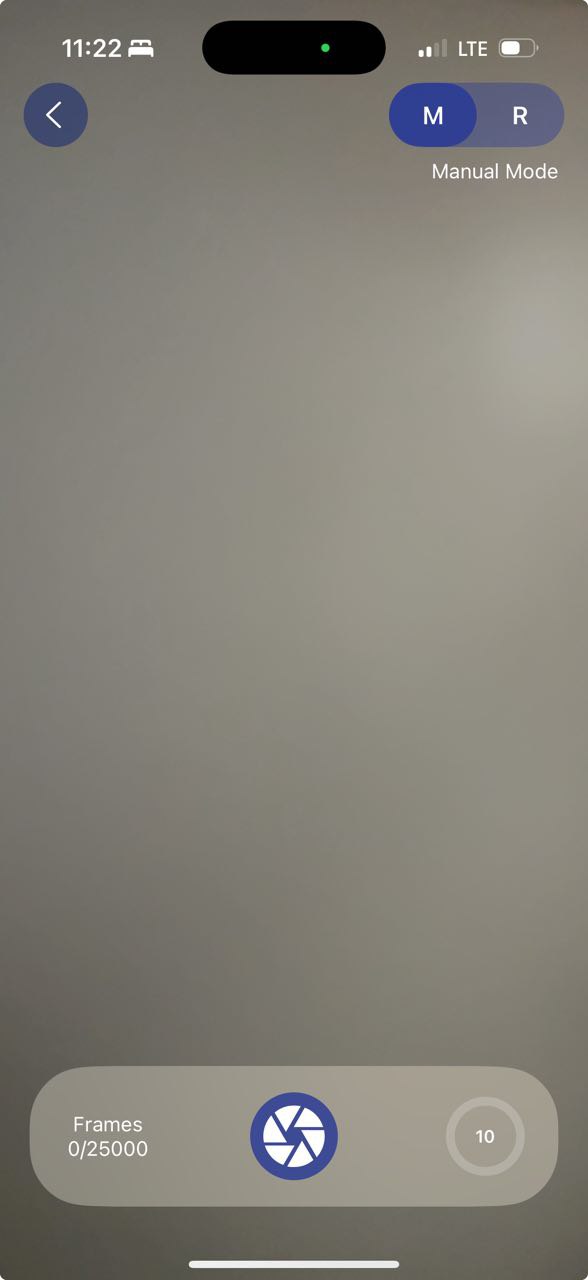
- Move the phone slowly. Feature points appear on screen: spots of detail the app can recognize. The denser they are, the more texture the scene has.
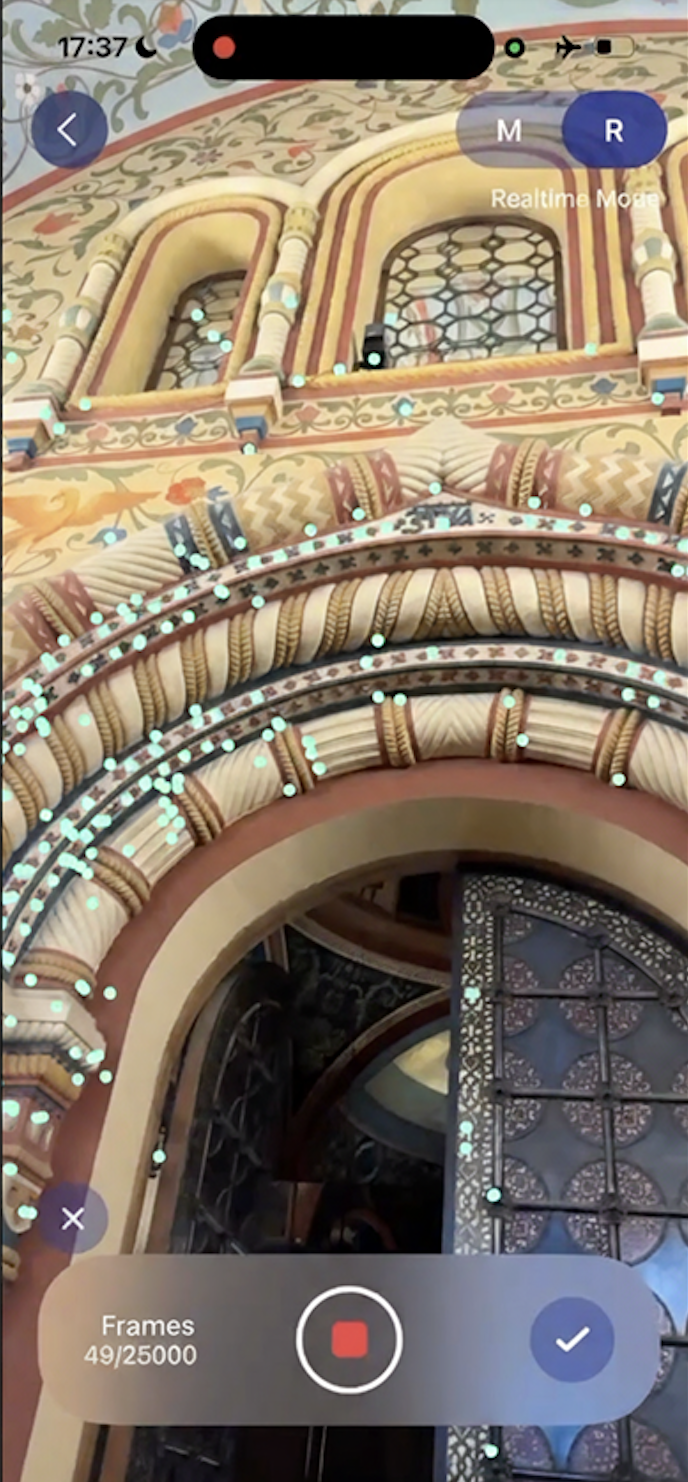
- Tap Finish to upload the capture to the server.
Check the map
Open the menu on any map.
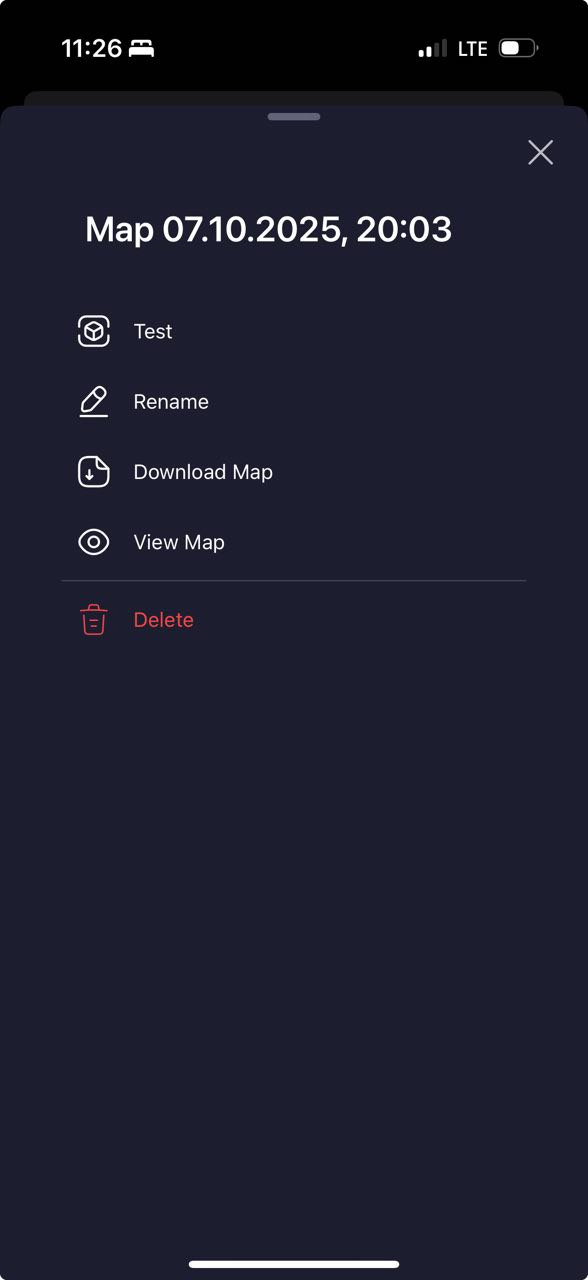
See the point cloud
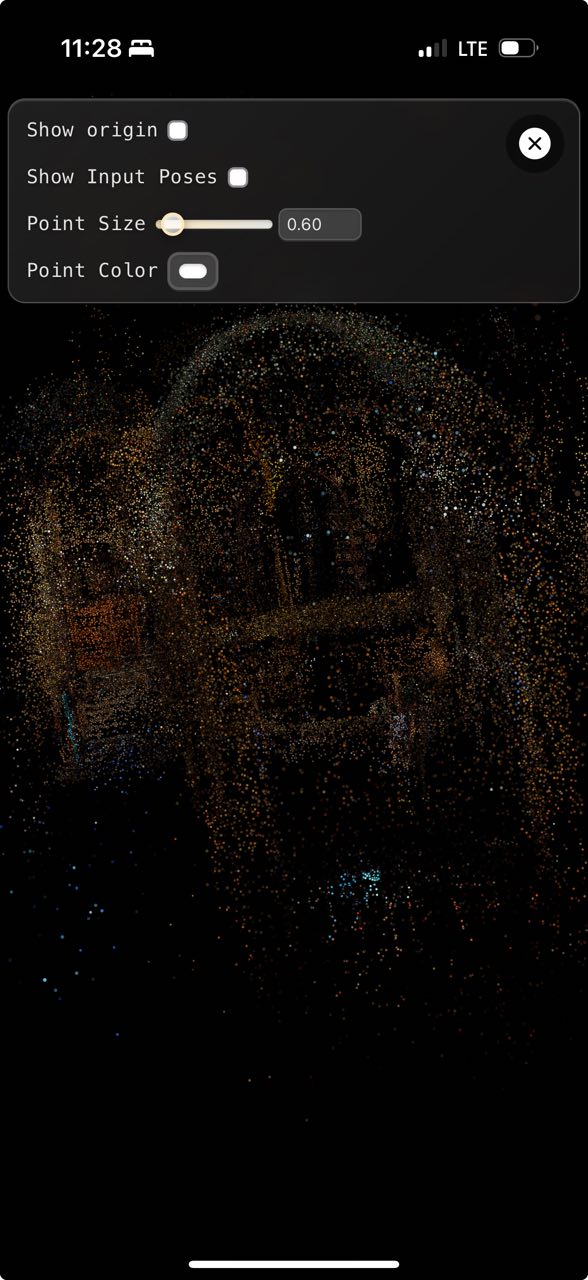
Choose View Map → PLY to see how dense the reconstruction is.
Test localization
Tap Localization Test and point the camera at the area you captured.
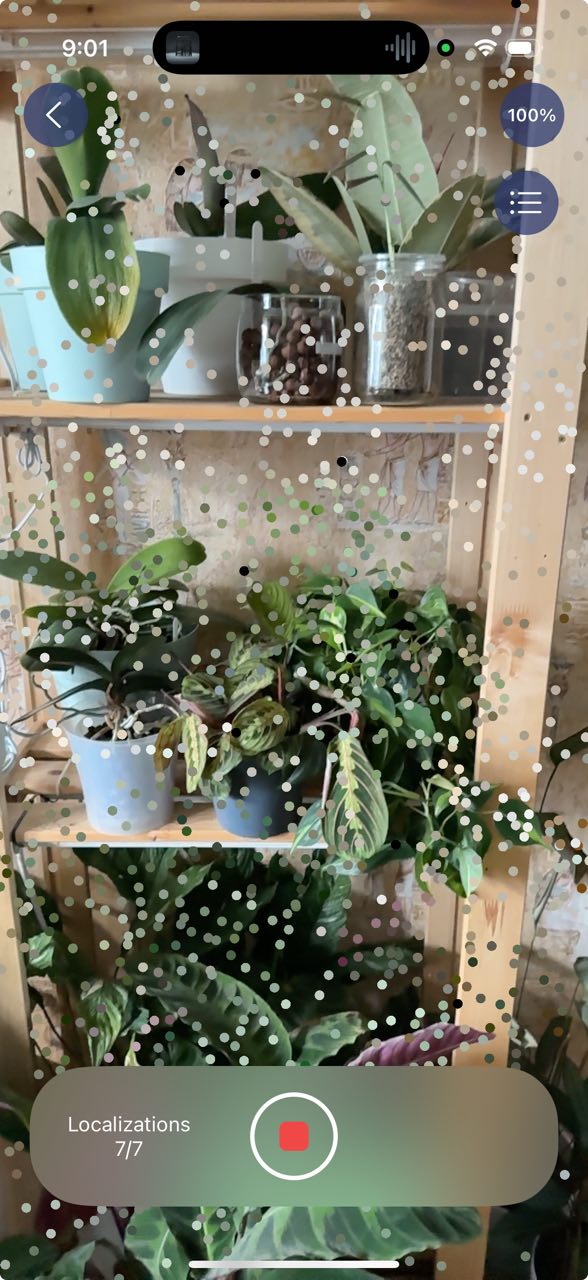
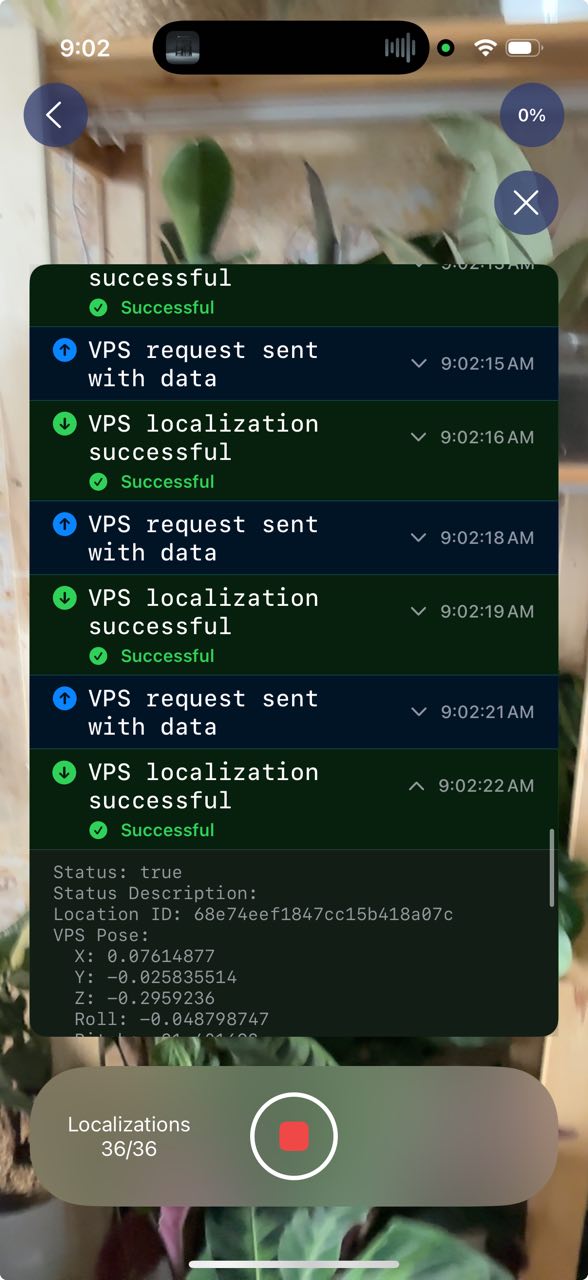
You can change the point cloud opacity and read the logs.
Next: Advanced mapping — build maps from photos, LiDAR scans, video or CAD models.